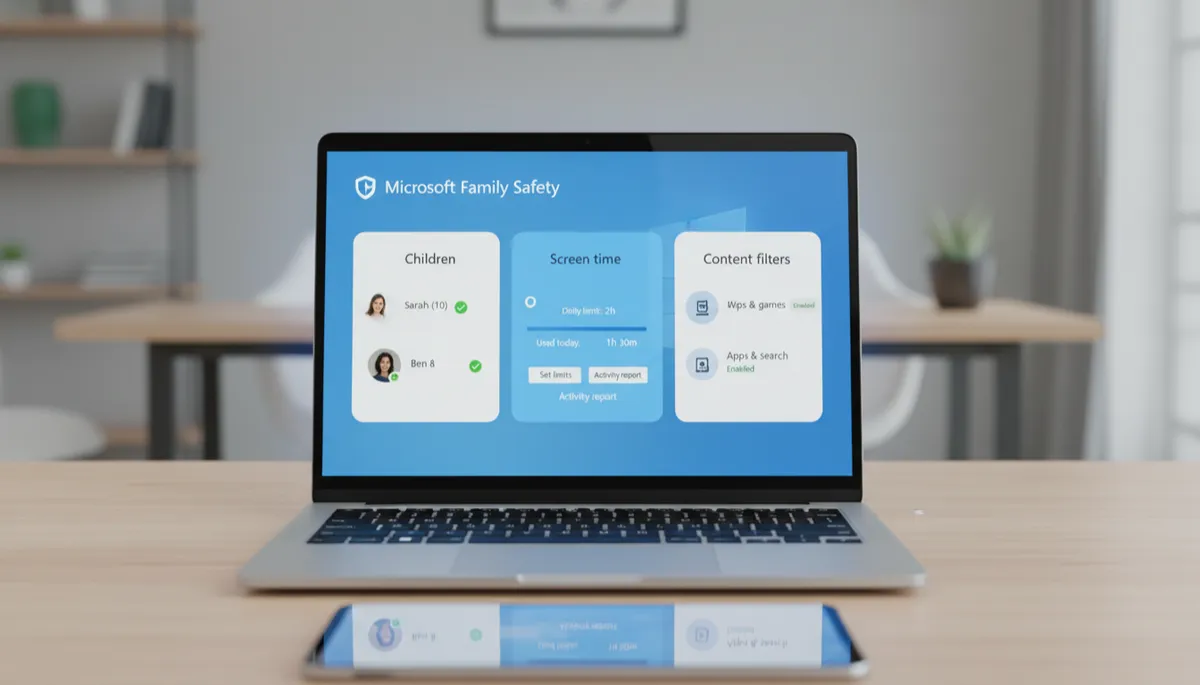
How to Set Up a Microsoft Family Group
What Is a Microsoft Family Group?
A Microsoft Family Group is a collection of Microsoft accounts linked together under one organizer. Once set up, parents get access to all Family Safety controls for children's accounts, and adult members can share benefits like Microsoft 365 subscriptions.
How to Create a Family Group
- Go to account.microsoft.com/family in a browser
- Sign in with the Microsoft account that will be the family organizer (usually a parent)
- Click Create a family group
- Click Add a family member
- Choose Child or Adult
- Enter their email address or create a new Microsoft account for them
- They receive an invitation email and must click the link to accept
Child vs. Adult Members
- Child accounts: Subject to all parental controls — screen time, content filters, spending limits, activity reports
- Adult accounts: Full control of their own settings, can view family locations if sharing is enabled
Signing In on the Child's PC
For screen time and content filters to work, your child must sign into the PC using their Microsoft account — not a local account. Switch: Settings → Accounts → Your info → Sign in with a Microsoft account instead.
Removing a Family Member
Go to account.microsoft.com/family → click the member's name → Remove from family group. Their account is not deleted — they just leave the group and controls no longer apply.
