How to Pair Bluetooth Devices on Windows 11
Pairing Is Usually a One-Time Process
Once you pair a Bluetooth device with your Windows 11 PC, it remembers the connection. Next time you turn on the device, it reconnects automatically — no need to pair again.
Step-by-Step: Pair Any Bluetooth Device
- Put the device in pairing mode — usually by holding the Bluetooth button until an LED flashes or you hear a tone. Check your device's manual.
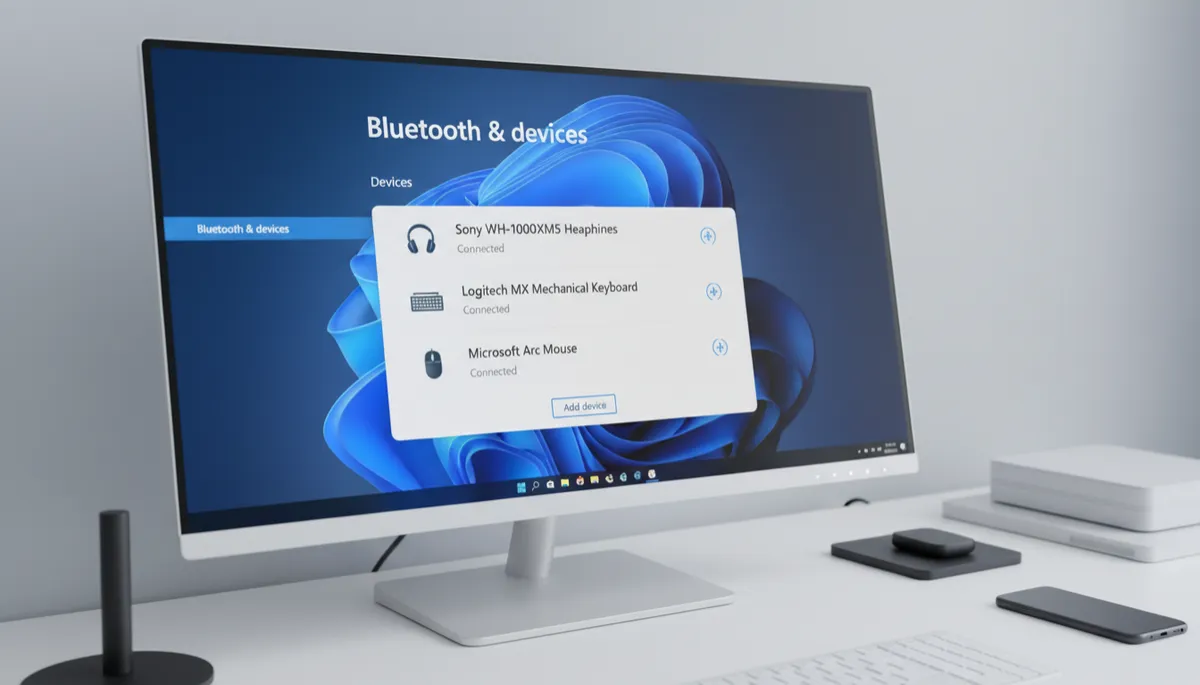
- On your PC, go to Settings → Bluetooth & devices
- Make sure Bluetooth is toggled On
- Click Add device
- Select Bluetooth
- Windows scans for nearby devices — your device should appear in the list
- Click the device name
- If prompted, confirm the pairing code on both the device and PC
- Click Done
Pairing Bluetooth Headphones or Earbuds
After pairing, Windows should automatically set them as the default audio output. If not: click the speaker icon in the taskbar → click the audio output selector → choose your headphones from the list.
Pairing an Xbox Controller
- Hold the pairing button on the controller (top edge, small button) until the Xbox button flashes
- Follow the standard pairing steps above
- The controller works immediately for any game or app that supports gamepad input
Reconnecting a Previously Paired Device
Turn the device on — it should reconnect automatically. If it doesn't: go to Settings → Bluetooth & devices → find the device → click Connect.
