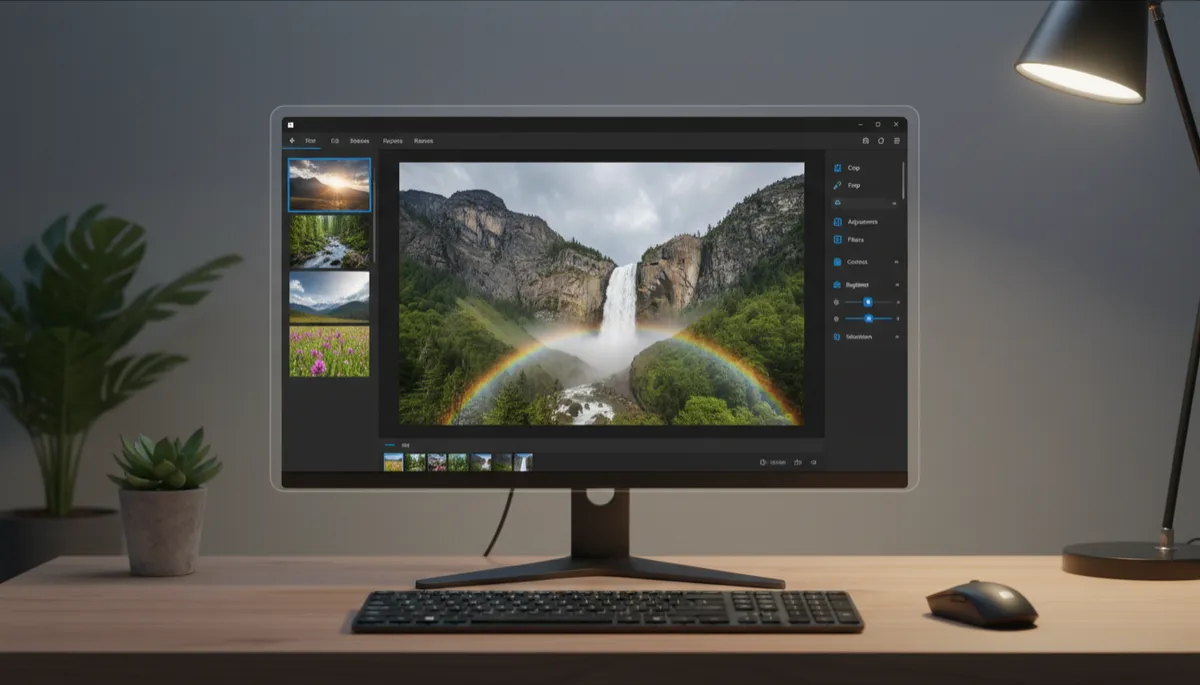
How to Connect iCloud Photos to Windows 11
Access Your iPhone Photos on Your Windows PC
If you use iCloud Photos on your iPhone and want those photos accessible on your Windows 11 PC without emailing them to yourself, you can link iCloud directly to Windows in a few minutes.
Step 1: Install iCloud for Windows
- Open the Microsoft Store
- Search for iCloud
- Click Get to install the official iCloud app for Windows
Step 2: Sign In and Enable iCloud Photos
- Open the iCloud app
- Sign in with your Apple ID
- Check the box next to Photos
- Click Apply
Step 3: Access Your Photos
After setup, your iCloud Photos appear in two places:
- File Explorer: A new iCloud Photos folder appears in the left panel — browse your library like any folder
- Windows 11 Photos app: iCloud Photos shows as a tab in the Photos sidebar — iPhone and PC photos together in one place
Download vs. Online-Only
- Online-only: Photos are visible but stored in iCloud — downloaded on demand when you open them (saves PC storage)
- Downloaded copies: Full resolution versions stored locally — available offline
Right-click any photo in iCloud Photos → Always keep on this device to force a local download.
Troubleshooting: iCloud Not Syncing
- Make sure iCloud is running in the system tray (bottom-right corner)
- On iPhone: Settings → [Your Name] → iCloud → Photos → toggle on
- Sign out and back in to the iCloud Windows app if sync gets stuck
