Get Help in Windows 11: Troubleshooting Guide
Windows 11, Help & Support, Troubleshooting
How to Get Help in Windows 11 (So You Never Feel Stuck Again)
Windows 11 comes with more help options than most people realize. Whether an app is acting strangely, a feature has gone missing, or something just doesn’t look right, you’re never more than a few clicks away from clear, friendly support. Let’s walk through the easiest ways to get help in Windows 11, step by step, so you can feel confident using your PC every day.
1. Press F1 for Built‑In App Help
One of the simplest ways to get help is also one of the oldest: the F1 key. In many Windows 11 apps, tapping F1 on your keyboard opens that app’s help page or support documentation. It’s like a quick shortcut to “What does this do?” without having to search the web on your own.
For example, if you’re working in a Microsoft app and something is confusing, press F1 and look for topics related to the button, menu, or feature you’re using. Not every single app supports F1, but when it does, it’s a fast, low‑stress way to get answers right where you are. If F1 doesn’t do anything, don’t worry—Windows 11 has plenty of other help options built in.
2. Use the Get Help App and Microsoft’s AI Support Assistant
When you want more guided help, Windows 11 includes a dedicated Get Help app, complete with Microsoft’s AI‑powered support assistant. To open it, click the Start button, start typing “Get Help” into the search box, and select the Get Help app from the results.
Inside the app, you can describe your problem in plain language—something as simple as “my sound isn’t working” or “I can’t connect to Wi‑Fi.” The AI assistant will suggest relevant support articles, troubleshooting steps, and sometimes even automated tools to run for you. If you still need more help, the app can guide you to contact options such as chat or call‑back support, depending on your region and device. It’s designed to feel like you’re talking to someone who knows Windows inside and out, so you don’t have to guess what to do next.
3. Try Built‑In Fixers in Settings → System → Troubleshoot
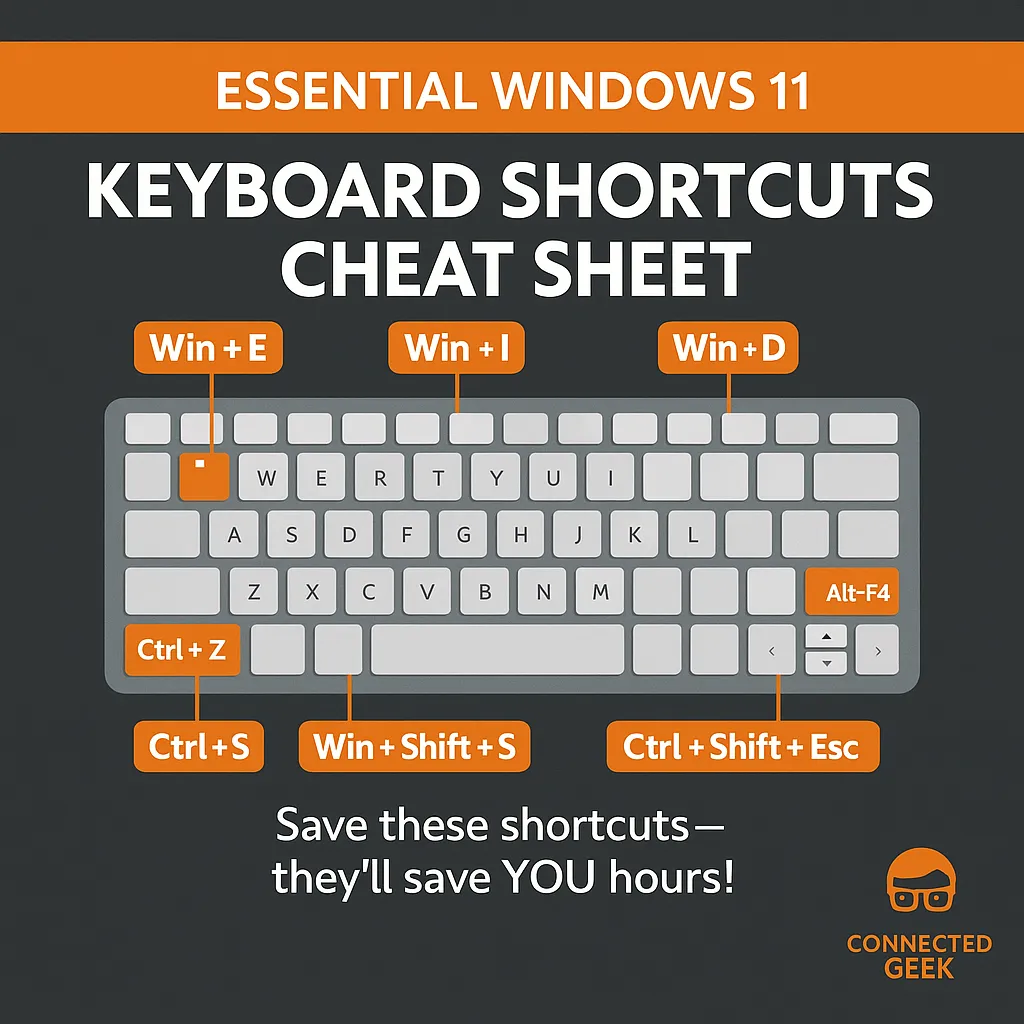
Windows 11 also includes a set of handy troubleshooters that can automatically find and fix common problems. To get to them, open Settings (you can press Windows key + I), then go to System and choose Troubleshoot.
Here, you’ll see recommended troubleshooters and a list of tools for specific areas like internet connections, audio, printers, and more. Click the troubleshooter that matches your issue and follow the on‑screen steps. Windows will scan for problems and either fix them automatically or explain what it found. This is a gentle, guided way to deal with issues that might otherwise feel technical or intimidating. You don’t have to be an expert—just follow the prompts.
4. Visit Microsoft’s Support Website for Deeper Answers
If you like to read detailed guides or explore more advanced topics, Microsoft’s official support website is a great resource. Open your web browser and go to support.microsoft.com, then search for “Windows 11” along with a few words describing your problem. You’ll find step‑by‑step articles, how‑to guides, and tips straight from Microsoft’s own documentation, so you can trust the information you’re reading.
The site also links to community forums where other Windows users share questions and solutions. Often, someone has already had the same issue you’re facing and found a fix, which can be reassuring and very helpful.
You’re Never Really Stuck in Windows 11
The most important thing to remember is this: in Windows 11, you are never on your own. If something goes wrong or you’re just unsure what to click next, you have options—F1 for quick app help, the Get Help app with its AI assistant, built‑in troubleshooters in Settings, and Microsoft’s support website for deeper guidance. You don’t need to be “good with computers” to use any of these tools; they are there to guide you one simple step at a time.
The next time Windows 11 surprises you, take a breath, pick one of these help options, and let the system walk you through it. With so many friendly support paths built in, you can explore, experiment, and use your PC with confidence—knowing that help is always just a key press or click away.
SEO Title: How to Get Help in Windows 11: F1, Get Help App, Troubleshoot & Support Site
Meta Description: Learn the easiest ways to get help in Windows 11, including using F1, the Get Help app with AI support, Settings > System > Troubleshoot, and Microsoft’s support website—so you never feel stuck again.
