Format Text Faster: Windows 11 Keyboard Shortcuts
Windows 11, Keyboard Shortcuts, Text Formatting, ConnectedGeek
Format Text Faster in Windows 11 with Simple Keyboard Shortcuts
Want to format text in Word, Outlook, or your favorite editor without constantly reaching for the mouse? These quick text formatting shortcuts in Windows 11 will help you work smoother, type faster, and look like a pro in every email and document.
Why Keyboard Shortcuts Beat the Mouse for Formatting
Every time you stop typing, grab the mouse, and hunt for a bold or italic button, you lose a little momentum. That tiny pause breaks your flow and makes writing feel more stop‑and‑go than it needs to be.
Keyboard shortcuts keep your hands on the keys, so your ideas can keep moving at full speed. Once you build the habit, pressing a shortcut to format text feels as natural as hitting the spacebar or Enter key.
In Windows 11, the classic formatting shortcuts still work beautifully across Word, Outlook, and almost any rich text editor you use every day. Whether you are polishing a report, replying to a client, or jotting down notes, these shortcuts help you stay in the zone instead of chasing buttons on a ribbon.
The Core Text Formatting Shortcuts You Need to Know
Here are the four essential text formatting shortcuts every Windows 11 user should memorize. They are simple, consistent, and work in most apps that support rich text formatting.
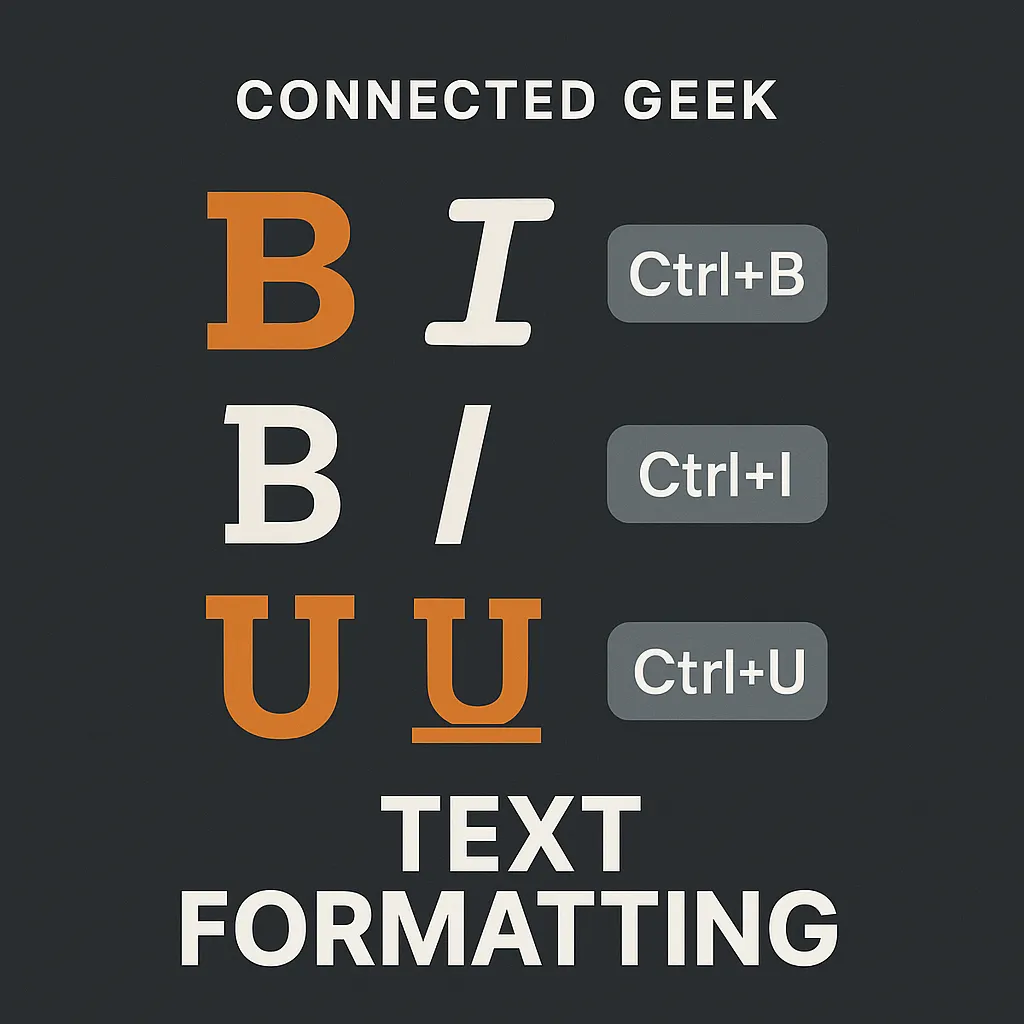
- Ctrl+B — Make selected text Bold. Use this for headings, important labels, or anything you want to stand out at a glance.
- Ctrl+I — Turn selected text Italic. Great for emphasis, quotes, or highlighting a key term without making it too loud.
- Ctrl+U — Underline the selected text. Handy for callouts, simple headings, or drawing attention to dates and deadlines.
- Ctrl+Shift+> — Increase the font size of the selected text. Tap it a few times to make a title or section header really pop.
These familiar keyboard shortcuts are perfect for everyday tasks: making headings stand out, emphasizing key phrases, or bumping up the size of a title so it pops off the page. You can even combine them—for example, make a heading bold and larger by pressing Ctrl+B and then Ctrl+Shift+>.
The One-Two Move: Select, Then Format in a Single Keypress
The real magic happens when you combine selection with shortcuts. The idea is simple: select your text first, then apply formatting in one keypress. No menus, no ribbons, no mouse travel.
- Type your sentence as normal in Word, Outlook, or another rich text editor.
- Select the text you want to format. You can drag with the mouse, or use Shift plus the arrow keys for precise keyboard selection.
- Press Ctrl+B, Ctrl+I, Ctrl+U, or Ctrl+Shift+>, depending on what you want to do.
Instantly, your selection updates: bold, italic, underlined, or larger in size. If you change your mind, press the same shortcut again to toggle the formatting off. It really is “select text first, then apply formatting in ONE keypress” — lightning fast, just like the ConnectedGeek social post promises.
“Once you get used to selecting and formatting with the keyboard, clicking toolbar buttons feels slow and clumsy.”
— Everyday Windows 11 power users, everywhere
Where These Shortcuts Work in Windows 11
The best part is how universal these text formatting shortcuts are. On Windows 11, you can rely on Ctrl+B, Ctrl+I, Ctrl+U, and Ctrl+Shift+> in:
- Microsoft Word for documents, reports, and essays.
- Outlook when you are writing emails or meeting notes.
- Most rich text editors, including many web-based editors in browsers, chat tools, and note-taking apps.
If the app lets you click Bold, Italic, or Underline on a toolbar, there is a very good chance these keyboard shortcuts work too. Try them the next time you are typing and notice how much smoother your workflow feels when you stay on the keyboard instead of bouncing back and forth to the mouse.
Make Shortcuts a Daily Habit
You don’t have to memorize every shortcut in Windows 11 to be more productive. Start with these four: Ctrl+B, Ctrl+I, Ctrl+U, and Ctrl+Shift+>. Use them a few times a day in Word or Outlook, and they will quickly become second nature.
A simple way to build the habit is to pick one type of formatting to “own” this week. For example, decide that every heading you write will be created with Ctrl+B and Ctrl+Shift+> instead of clicking any buttons. Next week, do the same with Ctrl+I for emphasis.
Before long, you will catch yourself formatting text automatically as you type, without even thinking about it. Your documents will look cleaner, your emails more polished, and your hands will stay right where they belong — on the keyboard.
SEO Title: Windows 11 Text Formatting Shortcuts: Ctrl+B, Ctrl+I, Ctrl+U and More | ConnectedGeek
Meta Description: Learn how to format text without touching the mouse in Windows 11. Discover essential keyboard shortcuts like Ctrl+B, Ctrl+I, Ctrl+U, and Ctrl+Shift+> that work in Word, Outlook, and rich text editors. A friendly guide from ConnectedGeek.
