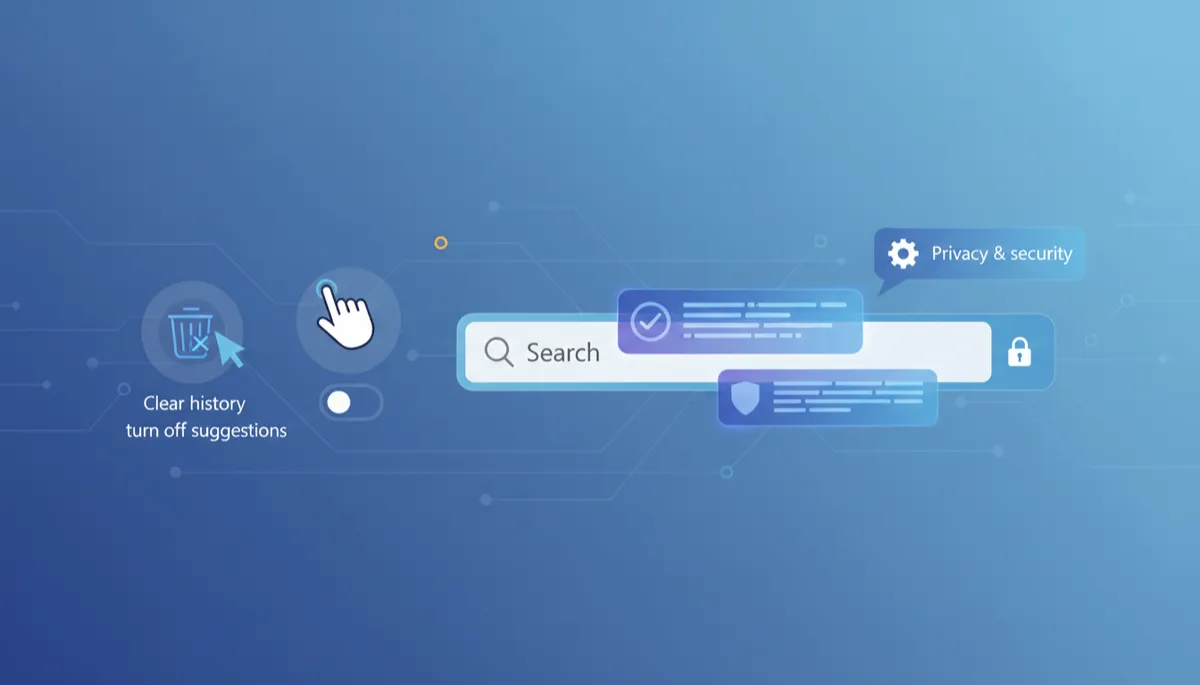
Control Windows 11 Search History & Suggestions
Windows 11, Privacy, Search Tips
How Windows 11 Search History & Suggestions Work (And How to Control Them)
Windows 11 makes it incredibly quick to find apps, files, and web results using the Search box on your taskbar or the Start menu. But behind that convenience is a quiet feature many people don’t think about: your search history and the suggestions that appear as you type. Understanding how these work—and how to manage them—can help you keep your PC feeling snappy while still protecting your privacy.
How Windows 11 Saves Recent Searches and Shows Suggestions
When you click the Search icon on the taskbar or press the Windows key and start typing, Windows 11 immediately begins suggesting what you might be looking for. This happens because Windows keeps track of your recent searches and uses them, along with common queries, to offer suggestions in real time.
You’ll see this in a few ways:
- A list of Recent or Recent searches when you open Search before typing anything.
- Suggestions that appear under the search box as you type, based on apps, settings, files, and sometimes web results.
- Quick links to things you’ve opened recently, such as documents or folders, that match what you’re typing.
This can be genuinely helpful. If you often search for the same project folder, a specific Settings page, or a favorite app, Windows learns that pattern and surfaces it faster. The trade-off is that Windows is storing a record of what you search for on that device, which might not always be what you want—especially on a shared or work computer.
How to Clear Your Windows 11 Search History
If you’d like to wipe the slate clean, you can clear your search history from Windows 11’s Settings. The option lives inside the privacy controls, which makes sense—your search history says a lot about what you do on your PC. Here’s how to clear it step by step:
- Click the Start button and choose Settings, or press Windows + I on your keyboard.
- In the left-hand menu, select Privacy & security.
- Scroll down and click Search permissions. This is where Windows groups the options related to what Search can see and remember.
- Look for a section related to Search history. You’ll see a button that lets you clear the history stored on your device.
- Click the option to Clear device search history, and confirm if Windows asks you to.
After you do this, your previous searches will no longer appear in the Recent list or as personalized suggestions. Windows will start building a new history from that point on, unless you also switch off the features that save it in the first place (we’ll cover that next).
How to Turn Off Search Suggestions in Windows 11
If you’d rather Search behave in a more “manual” way—showing results only based on what’s on your device, without clever guesses—you can turn off certain suggestions. You’ll find these controls in the same place as your search history options, which keeps everything nicely in one spot.
- Open Settings and go to Privacy & security again.
- Click Search permissions.
- Under the sections for things like Cloud content search and History, you’ll see toggles that control whether Windows can use your device history and cloud content to personalize results.
- Turn off the toggles that mention using your history or account data for search. This reduces or disables the suggestions that are based on what you’ve done before.
You may still see basic suggestions—like common Windows settings or popular web searches—but they won’t be tailored to your personal activity on that device. It’s a simple way to make Search feel a bit more private and predictable, especially if other people use your PC from time to time.
Why Managing Search History Matters for Your Privacy
Search history might seem harmless at first glance, but it can reveal a lot about you. The names of files you’ve looked for, apps you frequently open, and topics you search on the web all paint a picture of your habits and interests. On a personal laptop that never leaves your side, you might be comfortable with that. On a shared family PC or a work device, it can feel a bit too revealing.
Here are a few reasons you might want to actively manage search history and suggestions:
- Shared computers: If multiple people use the same Windows account, your recent searches can pop up for everyone, which isn’t ideal when you’ve been looking for work documents, medical information, or gift ideas.
- Work and school devices: On a company or school laptop, keeping your search history lean can help you avoid exposing personal interests or side projects to colleagues who might borrow your machine.
- General digital hygiene: Just like clearing your browser history or cookies from time to time, tidying up your Windows search history is a small habit that supports better privacy overall.
The good news is that Windows 11 doesn’t hide these controls. They’re collected neatly under Settings → Privacy & security → Search permissions, so you can review them in one quick visit. You’re free to keep the convenience of suggestions, turn them off entirely, or find a middle ground that feels right for you.
Finding the Balance Between Convenience and Control
Search in Windows 11 is designed to be helpful first and foremost, and for many people, leaving history and suggestions on is the right call. You get faster access to what you use most, and Search starts to feel like a smart assistant built into your taskbar. But it’s your device, your data, and your comfort level that matter most.
Taking a few minutes to explore the Search permissions page is an easy win. Clear out old history, switch off any suggestions you don’t want, and keep the ones that genuinely help you. With a little tuning, you can enjoy the speed of Windows 11 Search without giving up the privacy and control you deserve.
