Control Notifications in Windows 11 Notification Center
Windows 11, Notifications, Productivity
How Windows 11 Groups Notifications in Notification Center (and How to Control Them)
Windows 11 tries hard to keep your desktop from turning into a chaotic wall of pop-ups. A big part of that is how it neatly groups notifications in the Notification Center, so you can quickly scan what matters instead of chasing every little alert. Let’s walk through how this grouping works, how to read and dismiss things efficiently, and a handy trick for silencing noisy apps in just a couple of clicks.
Automatic Grouping: One Tidy Stack per App
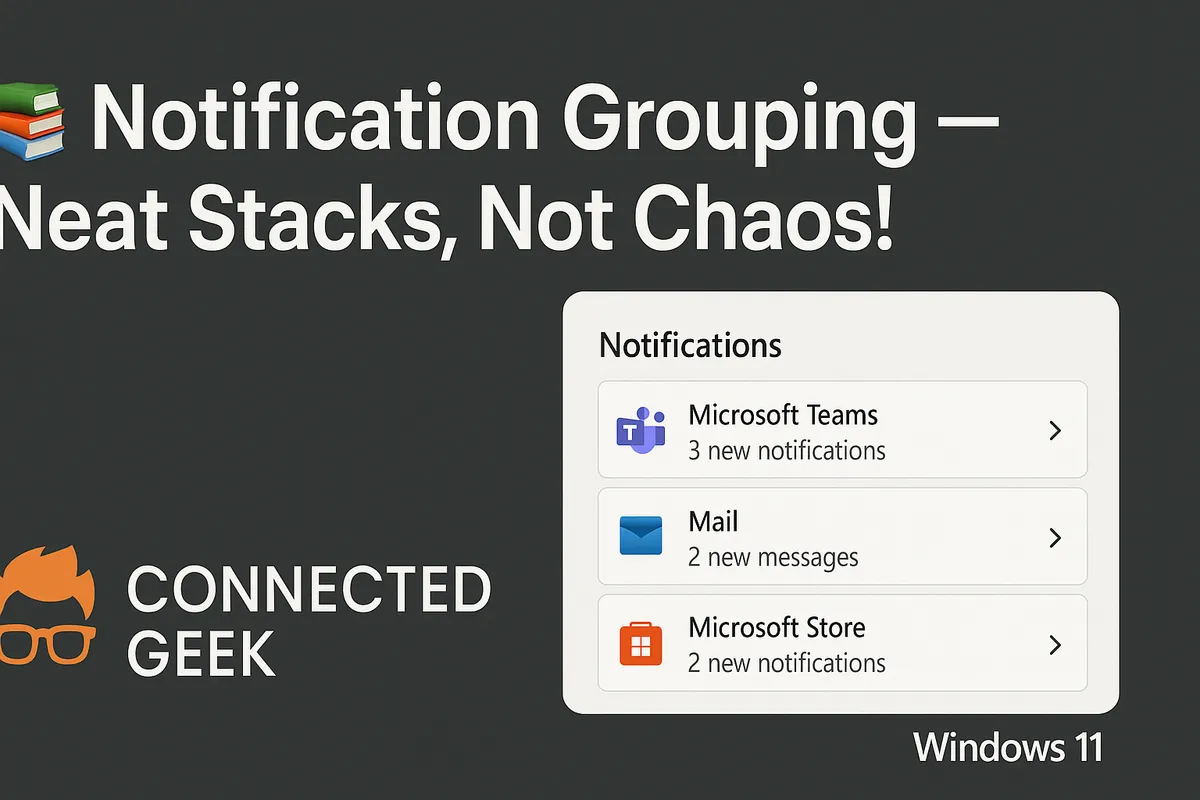
When multiple notifications arrive from the same app, Windows 11 automatically bundles them into a single, collapsed group in Notification Center. Instead of seeing five separate alerts from Mail, Teams, or your browser, you will usually see one entry with a small number showing how many notifications are inside the stack. This makes the panel feel calmer and more organized, especially if you use chat, email, and social apps all day long.
To open Notification Center, click the clock and date area at the far right of the taskbar, or press Windows key + N. You will notice that each app gets its own section, with recent notifications grouped together so you can scan by app instead of by time alone. It is a small change that makes a big difference when your attention is already stretched.
Expanding a Group to Read Individual Notifications
When you want to dive into a specific alert, expanding a grouped stack is quick and simple. Look for the app name acting as the group header, usually with a small arrow or chevron icon on the right side. Click anywhere on that header area, and the group will expand to reveal each individual notification underneath, arranged in order of arrival.
Once expanded, you can read the full text of each notification, click buttons like Reply, Dismiss, or Open, and interact with them just as you would if they had appeared one by one on your screen. If you only care about a single message or missed call, you can act on that one and simply leave the rest for later. The group will stay expanded while you are working, so you can move through several alerts from the same app without extra clicks.
Dismissing One Notification or the Whole Group
Sometimes you just want to clear the clutter and move on. In an expanded group, each notification has its own small close button (usually an X) that lets you dismiss that single item. This is perfect when you want to keep a couple of important alerts visible while discarding older or less relevant ones.
If you are sure you do not need any of the notifications in a stack, save yourself some time and dismiss the entire group at once. Hover over the group header and look for a close button on that row. Clicking it will remove every notification in that group from Notification Center in one go. It is a friendly way to hit “reset” on a busy app without having to click through each alert individually.
Quieting Noisy Apps: Right-Click the Group Header
Every now and then, one app gets a little too chatty. Maybe a news app keeps pushing breaking headlines, or a game insists on reminding you about daily rewards. Instead of hunting through Settings, you can calm things down directly from Notification Center with a quick right-click on the group header for that app.
Right-click the app’s name at the top of its notification group, and a small menu will appear. Here, you will see options like Turn off all notifications for this app or a shortcut to that app’s notification settings. Choose the turn off option, and Windows 11 will quietly block future alerts from that app, keeping your Notification Center much calmer. If you change your mind later, you can always re-enable notifications through Settings > System > Notifications.
Final Thoughts: Let Windows 11 Do the Tidying
With automatic grouping, easy expansion, one-click dismissal, and quick controls for noisy apps, Windows 11’s Notification Center is designed to support your focus instead of stealing it. Once you get comfortable using the group headers and right-click options, you will spend far less time managing alerts and more time actually getting things done on your PC.
Meta Title: How Windows 11 Groups Notifications in Notification Center (Step-by-Step Guide)
Meta Description: Learn how Windows 11 groups notifications in Notification Center, how to expand and dismiss them, and how to quickly turn off alerts from noisy apps.
