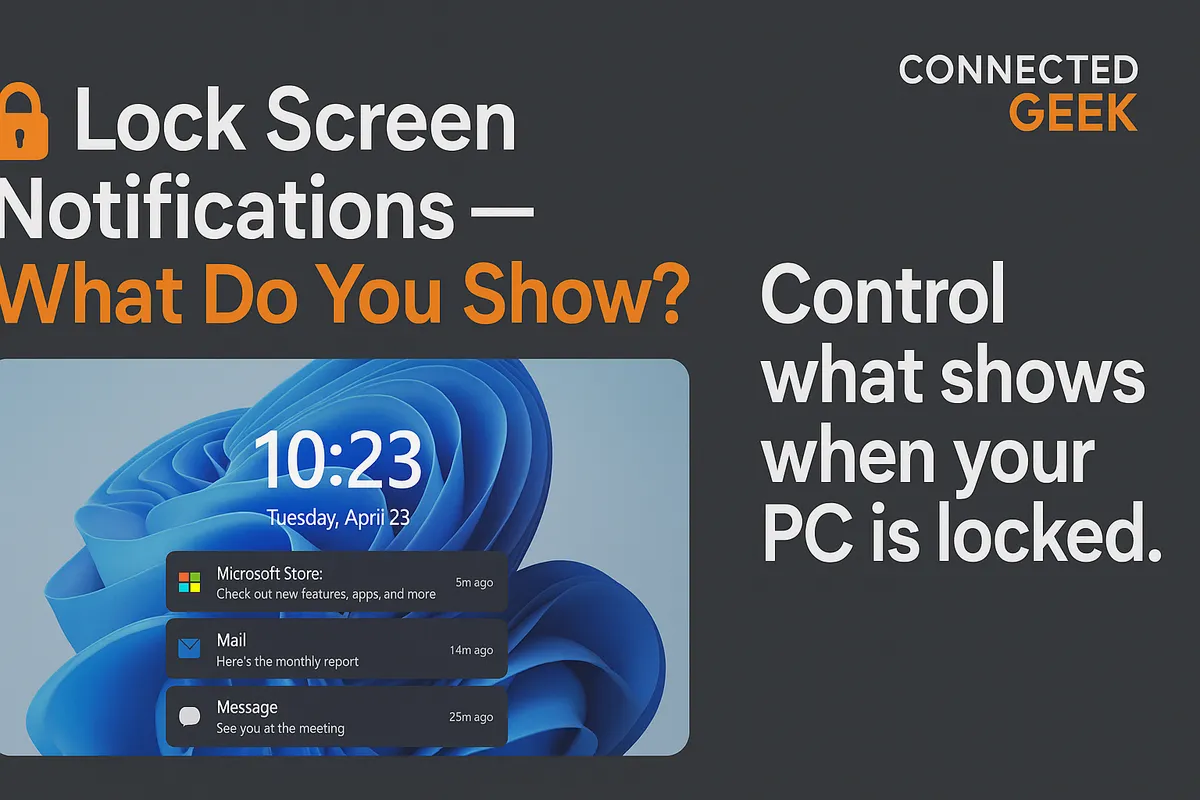
Control Lock Screen Notifications in Windows 11
Windows 11, Privacy, Lock Screen Notifications
How to Control Lock Screen Notifications in Windows 11 for Better Privacy
Lock screen notifications in Windows 11 are handy, but they can also reveal more than you’d like at exactly the wrong moment. The good news is that you can easily choose which apps are allowed to show notifications on your lock screen, and which should stay private. With a few quick tweaks, you can keep useful reminders visible while protecting sensitive information from prying eyes.
Why Lock Screen Privacy Matters in Everyday Life
Think about how often your laptop or PC is visible to other people. Maybe you work in a shared office, study in a library, or leave your device on the kitchen table at home. Even when your screen is locked, notifications can pop up with snippets of emails, banking alerts, or messages. Anyone walking by can glance at your lock screen and pick up details you never meant to share, such as meeting subjects, transaction amounts, or personal conversations.
In shared or public spaces, this becomes a real privacy risk. A quick look at your lock screen might reveal your workplace, your bank, or even your travel plans. By taking a minute to customize what appears there, you reduce the chance of accidental oversharing while still enjoying the convenience of timely alerts. It’s a small change that can make your digital life feel much more secure.
Step‑by‑Step: Turn Lock Screen Notifications On or Off for Any App
Windows 11 gives you fine‑grained control over which apps can show notifications on the lock screen. The process is simple and only takes a few clicks:
- Open Settings by clicking the Start button and selecting the gear icon, or by pressing Windows + I on your keyboard.
- In the left‑hand menu, choose System, then click Notifications. This is where you manage how apps alert you.
- Scroll down to the list of apps under Notifications from apps and other senders. Find the app you want to adjust and click its name to open its detailed settings.
- In that app’s notification options, look for the switch labeled Show notifications on the lock screen. Toggle this setting off to hide that app’s alerts from the lock screen, or toggle it on if you want them to appear.
You can repeat this process for each app, building a custom mix of what you see before you even sign in. It’s an easy way to make your lock screen feel more intentional and less cluttered.
Which Apps to Hide—and Which to Keep on Your Lock Screen
A friendly rule of thumb is this: if an app regularly shows sensitive or personal information, it probably shouldn’t appear on your lock screen. Email apps, messaging services, and banking or finance apps are the biggest culprits. An email subject line can reveal confidential work details, and banking alerts might show balances or recent purchases you’d rather keep private.
On the other hand, some apps are genuinely helpful to see at a glance. Calendar and reminder apps are a great example. Allowing your calendar to show notifications on the lock screen means you can quickly check upcoming meetings or appointments without unlocking your device. The information is usually less sensitive—things like “Dentist appointment at 3 PM” or “Team meeting at 10 AM”—but still very useful during a busy day.
You might also keep weather alerts, basic system notifications, or to‑do apps visible, as long as they don’t expose private details. By turning off lock screen notifications for private apps like email and banking, while keeping practical options such as calendar reminders enabled, you strike a comfortable balance between convenience and privacy. Your lock screen stays informative, but not intrusive.
Final Thoughts: A Simple Habit for Stronger Digital Privacy
Customizing lock screen notifications in Windows 11 only takes a moment, yet it can significantly reduce how much of your personal life is visible to others. Especially if you often use your device in shared or public spaces, taking control of which apps can show on the lock screen is a friendly, low‑effort way to protect yourself. Once you’ve tuned these settings, you can glance at your screen with confidence, knowing that what appears there is exactly what you’ve chosen to share—and nothing more.
SEO Title: How to Control Windows 11 Lock Screen Notifications for Better Privacy
Meta Description: Learn how to manage Windows 11 lock screen notifications step by step. Turn off sensitive apps like email and banking while keeping helpful calendar reminders visible, perfect for shared or public spaces.
