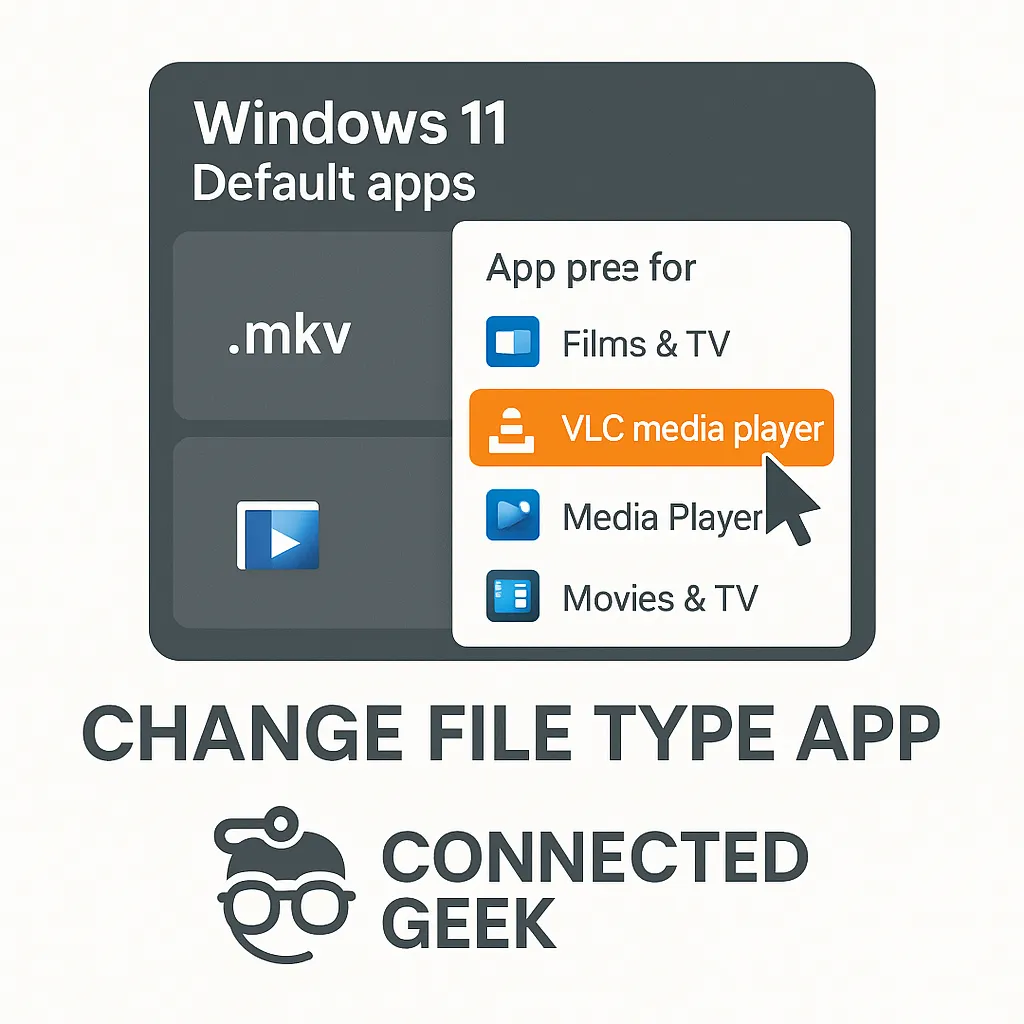
How to Change Which App Opens Any File Type in Windows 11
Windows 11, File Types, Default Apps
How to Change Which App Opens Any File Type in Windows 11
If Windows 11 keeps opening files in the wrong program, you can fix it in just a few clicks. By adjusting your default apps, you decide exactly which app opens each file type, from .pdf and .mp3 to .docx and beyond. This guide walks you step by step through the built-in Windows 11 settings so you can quickly change defaults for any extension you use.
Step 1: Open the Default Apps Settings in Windows 11
Start by opening the Windows 11 Settings app. The fastest way is to press the Windows key + I on your keyboard. You can also click the Start button, then click the small gear icon, or type “Settings” into the search box and select it from the results. Once Settings is open, you will see a list of categories down the left side of the window.
In the left-hand column, click Apps. This opens the main Apps section, where you manage installed programs, optional features, and, most importantly for this task, your default apps. On the right-hand side, click the option labeled Default apps. This is where Windows 11 keeps all the controls for deciding which app opens what.
Step 2: Use “Choose defaults by file type” for the Full A–Z List
On the Default apps page, scroll down until you see a link called Choose defaults by file type. This is the key section for precise control. Click this link to open a new page that shows an A–Z list of file extensions, such as .pdf, .mp3, .docx, .jpg, and many more. Each row shows the extension on the left and the app that currently opens that type on the right.
This list is long, but that is a good thing: it means you can adjust almost any file type you encounter. Windows lists extensions in alphabetical order, starting with symbols and numbers, then .aac, .avi, .bmp, and so on through to .zip and other formats. You can scroll through this list to discover which apps are currently set as defaults and decide what you want to change.
Step 3: Click an Extension and Pick a New App
To change which app opens a specific file type, find the extension in the list, then click the app name shown to the right of it. For example, if you see .pdf with “Microsoft Edge” listed beside it, click the “Microsoft Edge” text. A small window will pop up showing a list of apps capable of opening that file type.
In the pop-up, select the app you want to use from now on. Once you click your preferred app, Windows 11 will immediately set it as the new default for that extension. From that point on, double-clicking a file with that extension in File Explorer will open it in the app you chose. You do not have to restart your computer or confirm anything else; the change takes effect right away.
Step 4: Use the Search Box to Find an Extension Quickly
Because the file-type list is so long, scrolling can be time-consuming if you know exactly what you are looking for. At the top of the Choose defaults by file type page, there is a search box. To use it, click inside the box and type the extension you want to change, including the dot. For example, type “.pdf” or “.mp3” or “.docx”.
As you type, Windows filters the list to show only matching entries, so you can jump straight to the exact file type you need. This is especially helpful for less common formats, such as .flac for audio or .odt for documents. Once the extension appears, follow the same process: click the current default app, choose a new one from the list, and confirm your selection by clicking it.
Step 5: Practical Examples for Common File Types
To make this more concrete, here are a few everyday examples you can try:
- .pdf → Adobe Acrobat: If your PDFs keep opening in Microsoft Edge but you prefer Adobe Acrobat, search for .pdf in the file-type list, click the current app, and select Adobe Acrobat. From then on, all PDF files you open will launch in Acrobat instead of your browser.
- .mp3 → Spotify or Winamp: For music files, look up .mp3. If you have Spotify or Winamp installed and they support this type, they will appear in the list. Choose your preferred player so that double-clicking any MP3 track automatically opens it in that app.
- .docx → Word or LibreOffice: For Word documents, find .docx. You can switch between Microsoft Word and LibreOffice Writer if both are installed. Pick the one you use most often, and Windows 11 will remember that choice each time you open a .docx file.
You can repeat this method for any other file types you handle regularly, such as .jpg images, .xlsx spreadsheets, or .zip archives. The process is always the same: find the extension, click the current app, and choose the new one you want to use by default.
Step 6: What If the App You Want Is Not Listed?
Sometimes, the app you want to use does not appear in the initial list. This usually means one of two things: either the app is not installed, or Windows does not yet recognize it as able to open that file type. First, confirm that the program is actually installed on your PC. If it is not, install it, then return to the Choose defaults by file type page and try again.
If the app is installed but still not shown, look for an option such as More apps or Look for an app in the Microsoft Store in the pop-up window. Choosing the Store option will search for compatible apps you can download. In some cases, you may need to first open one file of that type by right-clicking it in File Explorer, selecting Open with, and then choosing Choose another app. After you pick your preferred program and check Always use this app, it will start appearing as a default option in Settings for that file type.
Final Check: Review and Adjust as Needed
After you change a few defaults, it is a good idea to test them. Double-click a .pdf, .mp3, or .docx file in File Explorer and confirm that it opens in the app you selected. If it does not, return to Settings → Apps → Default apps → Choose defaults by file type and verify that the right app is set. You can adjust these settings as often as you like until everything opens exactly where you want it.
