Adjust Liquid Glass Intensity in iOS 26
iOS, Display Settings
How to Adjust Liquid Glass Intensity in iOS 26 — Full vs Balanced vs Off
If the new Liquid Glass look in iOS 26 feels a little too bold—or not bold enough—rest assured, you’re fully in control. Apple lets you choose how intense these glassy, translucent effects appear, so you can match your iPhone’s style to your eyes, your battery, and your device’s age without losing any features.
How to Find the Liquid Glass Setting
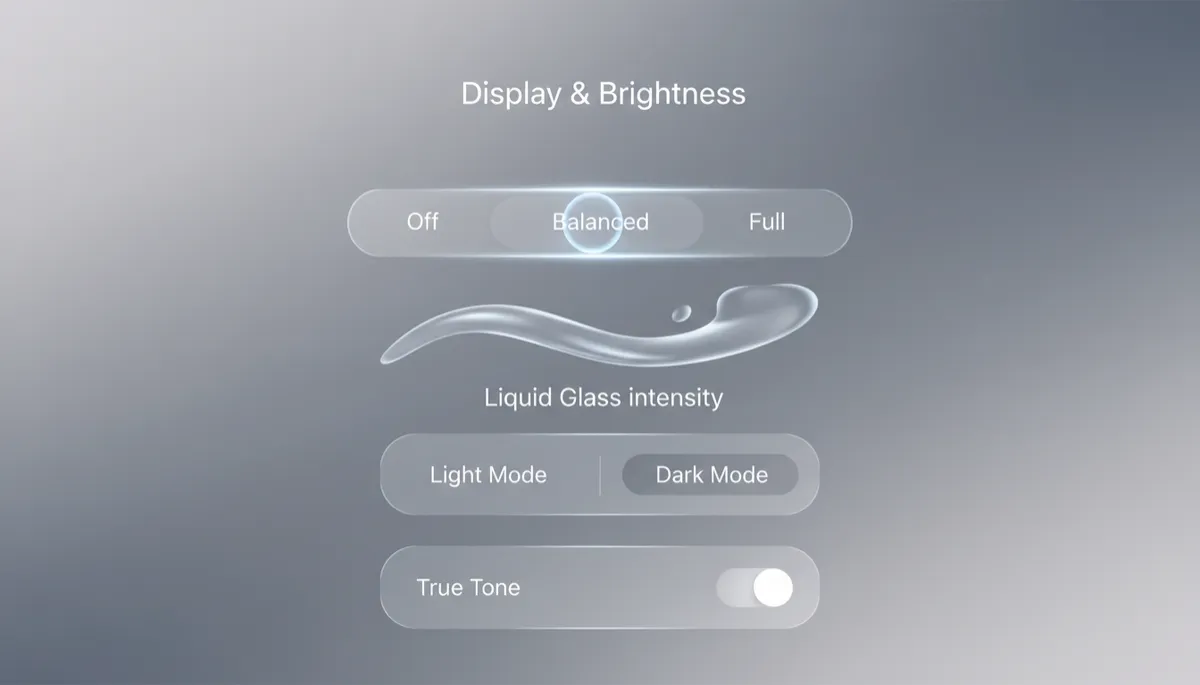
Changing Liquid Glass intensity only takes a moment, and you can switch back and forth as often as you like. To adjust it:
- Open Settings on your iPhone.
- Tap Display & Brightness.
- Choose Liquid Glass.
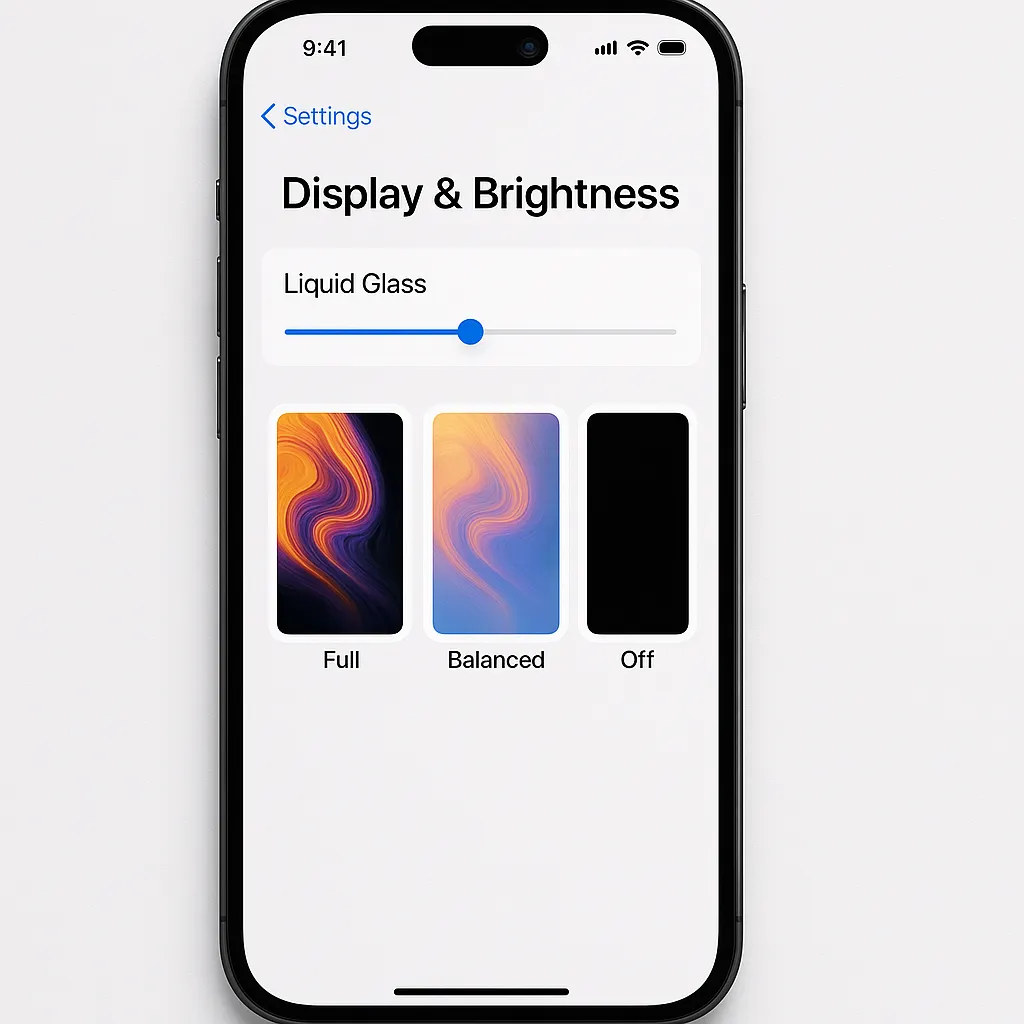
Here you’ll see the three options: Full, Balanced, and Off. Each one is safe to try—your apps, notifications, and core features remain exactly the same; only the visual style changes.
Full: Maximum Glass, Maximum Wow
With Full enabled, every Liquid Glass effect is active across iOS. You’ll notice rich transparency in menus, dynamic reflections on icons, and fluid, glass-like panels in places like Control Center and widgets. It’s the most immersive, modern look Apple offers in iOS 26, and it’s designed with newer hardware in mind.
Full is best suited for iPhone 14 Pro and newer models, where the GPU easily handles the extra polish. In terms of battery, Full uses slightly more GPU power during animations and scrolling, but on recent devices this increase is modest and usually not something you’ll feel in everyday use.
Balanced: The Comfortable Middle Ground
Balanced keeps the heart of the new design while gently dialing back the intensity. You’ll still see the refreshed card-style notifications, smart tab bars, and soft glass layers, but with reduced transparency and shimmer. The interface still feels new, just a bit calmer and easier on both your eyes and your battery.
This mode is a great fit for iPhone 12, iPhone 13, and non‑Pro iPhone 14 models. Because it tones down some of the heaviest visual effects, Balanced can save roughly 5–10% battery in GPU‑heavy scenarios like long scrolling sessions or lots of multitasking, without making your phone feel dated or plain.
Off: Classic Flat Look, Maximum Battery Comfort
Choosing Off turns Liquid Glass effects off entirely and brings back a more traditional, flat appearance similar to iOS 18. Icons return to a solid, less reflective look, and backgrounds lose most of their translucent layers. The interface remains clean and familiar, just without the glassy depth.
This is the gentlest option for your hardware and battery. It carries the lowest processing load and is recommended for devices like iPhone 11, iPhone 12 mini, or any phone where you’ve noticed battery drain and want to be cautious. Importantly, turning Liquid Glass off does not remove any features: your apps, widgets, notifications, and system capabilities all work exactly the same. You’re only changing how things look, not what your iPhone can do.
Choosing the Setting That Feels Right for You
If you’re unsure where to start, try Full for a day and simply listen to how your phone feels. If animations stay smooth and battery life seems normal, you can confidently enjoy the full Liquid Glass experience. If you’d like a little extra cushion, step down to Balanced and see whether that mix of style and efficiency feels more reassuring. And if you ever want absolute peace of mind for an older device or a long travel day, switch to Off knowing you’re not giving up any functionality—only a bit of visual flair.
