Add Folder Shortcuts to Windows 11 Start Menu
Windows 11, Productivity Tips
Add Folder Shortcuts to the Windows 11 Start Menu for One-Click Access
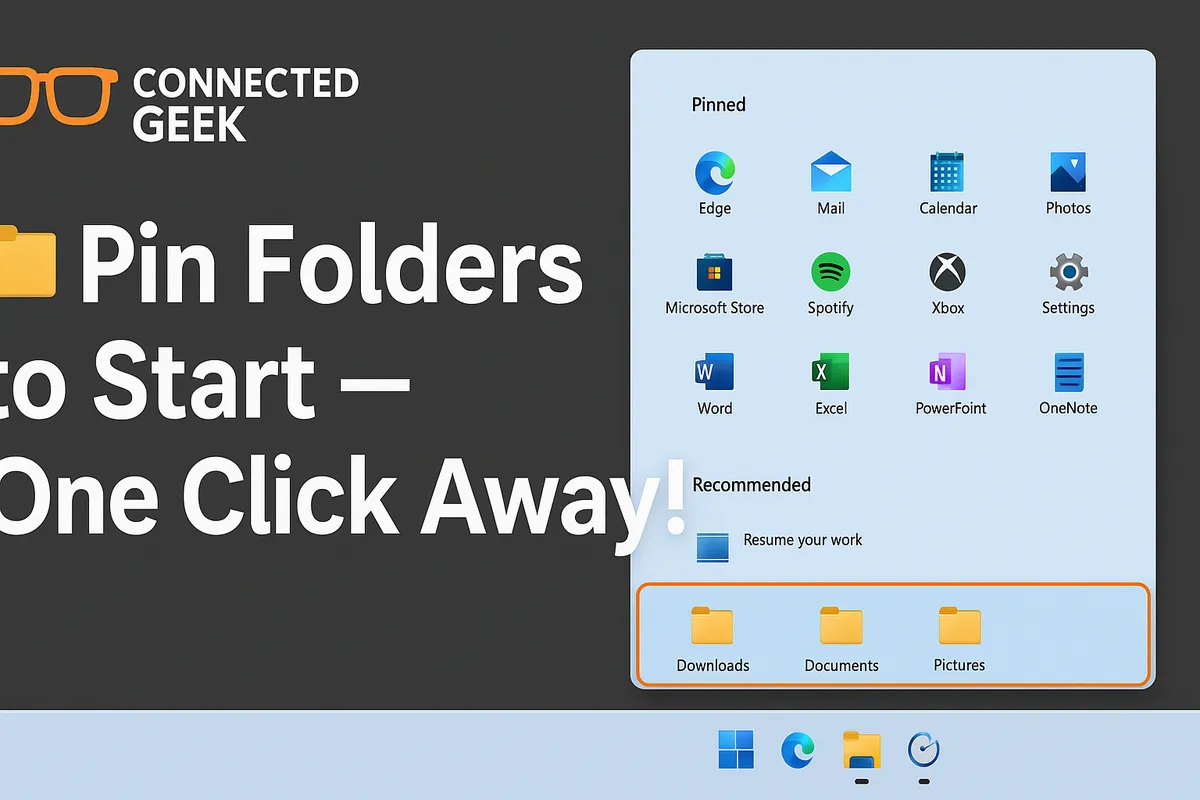
If you live in File Explorer all day, every extra click starts to feel like a tiny speed bump. The good news is that Windows 11 quietly includes a feature that turns your Start Menu into a launchpad for your most-used folders. By adding folder shortcuts next to the Power button, you can jump straight into Documents, Downloads, and more with a single click.
How to Find the Folder Shortcut Settings in Windows 11
Everything you need is tucked neatly inside the Windows Settings app. To get started, open Settings (you can press Windows key + I), then follow this exact path: Personalisation → Start → Folders. That last “Folders” page is where the magic happens, so take a moment to click into it and explore the options available.
On this screen, you will see a list of built‑in locations you can pin as shortcuts. Each one has a simple toggle switch. Turn a switch on, and Windows will add a small icon for that folder to the bottom-right of your Start Menu, right beside the Power button. Turn it off, and the icon disappears again. It is simple, reversible, and surprisingly powerful once you set it up thoughtfully.
Enable One-Click Access to Your Key Folders
Let’s walk through the main options you will see on the Folders page and why each one can save you time, especially if you are a File Explorer power user who juggles dozens of windows and directories every day.
- Documents: Toggle on Documents if you are constantly opening reports, notes, or project files. Instead of launching File Explorer and clicking through “This PC → Documents,” you will have a one-click shortcut from Start that drops you straight into your Documents folder.
- Downloads: The Downloads toggle is a lifesaver if you frequently grab files from the web. Rather than hunting through recent files or browser download lists, click the Downloads icon next to the Power button and you are instantly in the folder where everything lands.
- Music: If you keep audio files or project stems on your PC, enabling Music gives you a quick way to jump into your music library. It is especially handy if you use local files with media players or audio editing apps and want to keep them just one click away.
- Pictures: Turning on Pictures is perfect for anyone who works with screenshots, photos, or design assets. Instead of digging through multiple folders, that little Pictures icon on the Start Menu takes you straight to your image collection.
- Videos: If you edit clips, record screen captures, or just store movies locally, enable the Videos shortcut. One click from Start and you are in your video library, ready to drag files into your editor or playback app without extra navigation.
- Network: For anyone who works with shared drives or NAS storage, the Network option is a quiet hero. Switch it on, and the Start Menu icon jumps you right into the Network view in File Explorer, so you can connect to shared folders and servers faster than ever.
- Personal folder: The Personal folder (sometimes called “Home” or your user folder) is a top-level view of everything tied to your Windows account: Desktop, Documents, Downloads, and more. Enabling this shortcut gives you a powerful starting point when you are working across multiple locations at once.
Where the New Folder Icons Appear in the Start Menu
After you have toggled on your chosen folders, open the Start Menu and look toward the bottom-right corner. You will see a row of small icons sitting directly beside the Power button. Each icon represents one of the folders you enabled: Documents, Downloads, Music, Pictures, Videos, Network, and your Personal folder. Hover over an icon and you will see a tooltip confirming which folder it opens.
This placement is clever because it keeps your shortcuts always visible but never in the way. Whether your Start Menu is packed with pinned apps or kept minimal, those folder icons stay anchored next to Power, ready for a quick click whenever you need them.
Why This Is a Game-Changer for File Explorer Power Users
If you are the kind of person who always has five File Explorer windows open, this feature can genuinely change how you work. Instead of repeatedly opening Explorer, navigating to “This PC,” and drilling down into the same set of folders, you turn the Start Menu into a launch bar for your most important locations. Each click you save might only be a second, but over a full day of heavy usage, those seconds add up quickly.
It also helps you stay focused. With folder shortcuts next to the Power button, you are less likely to get distracted by other drives, random folders, or clutter inside File Explorer. You open Start, tap the icon you need, and you are exactly where you meant to be. For power users who value speed, precision, and a tidy workflow, adding folder shortcuts to the Windows 11 Start Menu is a small tweak that delivers outsized benefits.
SEO Title: How to Add Folder Shortcuts to the Windows 11 Start Menu for One-Click Access
Meta Description: Learn how to add folder shortcuts to the Windows 11 Start Menu via Settings → Personalisation → Start → Folders, and discover why this simple tweak is a game-changer for File Explorer power users.
